“How to Prepare Print Files Correctly”
Send your files with no problems from incorrect file sizes
Which file formats can be used? Let's take a look
Preparing Files for Printing
Preparing Files for Printing
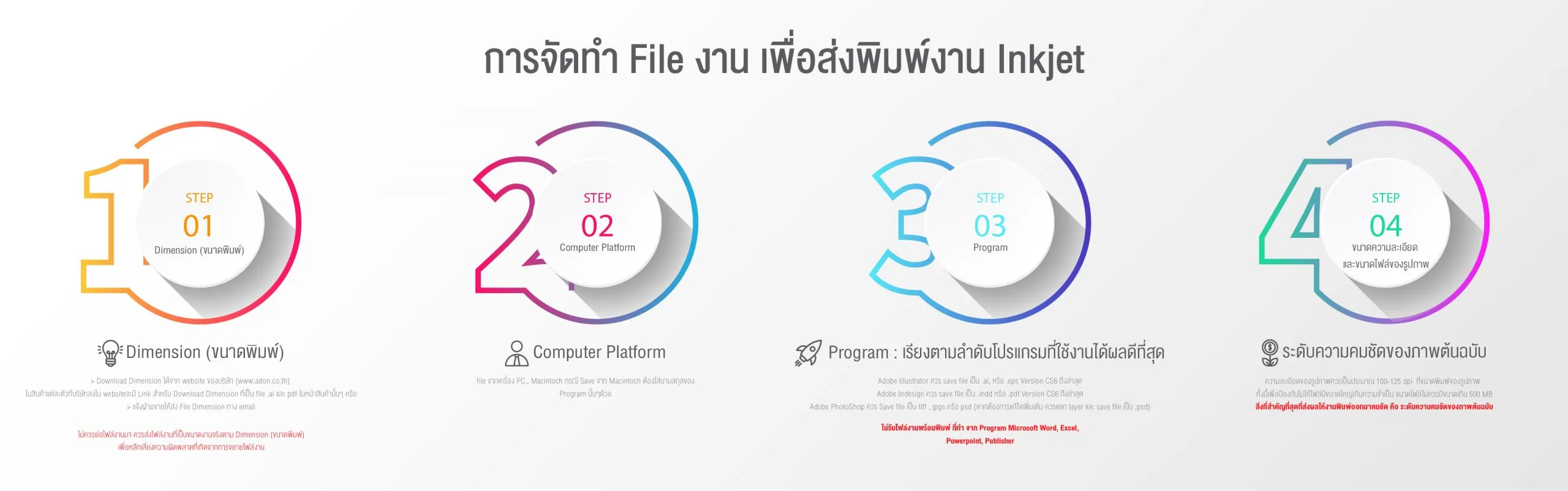
1. Dimension (print size) : Customers must create the artwork file to match the print size of the product
- You can get the dimension file in two ways:
1.1 Download the dimension from the company website (www.adon.co.th). Each product on the website has a link to download the dimension as .ai and .pdf files on the product page you need
1.2 Ask the sales team to send the dimension file by e-mail
(*****Do not scale down your artwork file; send it at actual size according to the dimension to avoid errors caused by enlarging the file*****)
2. Computer Platform : Files from PC or Macintosh. When saving from a Macintosh, you must include the program's file extension so other computers can process it correctly
3. Program: listed in order of best results
1.) Adobe Illustrator: save as .ai or .eps, version CS6 to latest
2.) Adobe Indesign: save as .indd or .pdf, version CS6 to latest
• The following must also be attached:
1. All images used in the artwork
2. Logo
3. Fonts
• Embed the ICC color profile in the artwork, or include the PANTONE colors you want in the file
• Attach the artwork as a JPG file so the original artwork file can be checked for accuracy, since artwork created in different program versions may display differently
• All text must be converted to outlines (Create outline) to prevent floating vowels, broken characters and incorrect font rendering
Artwork guidelines: to prevent errors during printing and allow the artwork to be edited if necessary, separate the artwork elements into layers as follows
• All text and lettering on 1 layer, all converted to outlines
• Logo 1 layer
• Background 1 layer
• Separate images and art created with Illustrator tools, such as effects and gradients, into 1 or more layers as appropriate, for easy editing if necessary
When the artwork is finished, save the print file as a separate file. In the print file, merge the background layer and effects layers into a single TIFF layer, and send a print file containing only the text layer, the logo layer, and the remaining art layers merged and converted into a single TIFF layer for printing
3)Adobe PhotoShop
• Prepare all image files in RGB mode and save them as tiff, jpg or psd (if further editing is needed, keep the layers separate and save as .psd)
• Embed the ICC color profile in the images for the most accurate colors
4. Print-ready files made in Microsoft Word, Excel, Powerpoint or Publisher are not accepted
5. If you need colors to match the original you must provide a color swatch sample from the actual material. Colors cannot be matched to a screen or to CMYK or RGB color formulas
6. Image resolution and file size
Image resolution is determined by the file size in megabytes; higher-resolution images have larger files in proportion to their resolution. Images should be the following sizes (if possible)
25 MB per square meter -> meaning that if an image is enlarged to a print size of 1 square meter, the image file should be 25 MB
If the image is enlarged to a print size of 2 square meters, the image should be 100 MB
The most important factor for a sharp print is the sharpness of the original image. If the image was taken with a high-quality camera, the print will be as sharp as the original. If the original is low quality, the print will be equally low quality Upscaling raster images such as TIFF, JPG, PNG, etc. in Photoshop will not make them any sharper or better, and should never be done, as it will reduce quality Therefore, the original image should be a TIFF file taken directly from the RAW file of a high-quality camera, or from scanning photos and slides with a high-quality scanner
Image resolution should be increased from the camera's RAW file, by enlarging the RAW file in Photoshop, Lightroom or another program that can enlarge images from RAW files, to reach the required print file resolution of 25MB/square meter. If the image comes from scanning photos or slides, scan them with a high-quality scanner at the required resolution of 25MB/square meter
7. Sending files:
1. Upload files via www.wetransfer.com Up to 2 GB per transfer. After uploading, send to E-mail: [email protected]
2. Upload files via www.dropbox.com
3. Upload files via Google Drive; customers must also send the password
4 E-mail: data sent via Gmail is limited to 25 MB
5. CD,DVD,Flashdrive
*****For enquiries, contact the graphics department at 083-0965592****
Download the Dimension file from the product page
The Dimension file is on each product page, for example Pop Up backdrop, Roll-Up Banner and Exhibition Board

 EN
EN  TH
TH